

Practical tips and free WordPress tools to improve site speed and deliver a smoother experience for your visitors.
Summary: A fast site means happier visitors and better search rankings. In this article, I share the exact free WordPress plugins I used to solve caching and image issues — taking MicroBiz TechHub from sluggish to speedy with PageSpeed scores near perfect.
Why Site Speed Matters
When I first launched MicroBiz TechHub, I wanted it to be more than just a blog — it’s a resource solopreneurs can trust to help them run their businesses smarter with technology. But when I ran a PageSpeed Insights test recently, the results made me stop in my tracks: a score of 65–70 on mobile — and at a time when nearly 65% of all web traffic comes from mobile devices.
For solopreneurs — whether you’re running a local café, a trade service, or an online shop — the reality is the same: if your website is slow, your customers (or potential customers) will bounce. That’s if they even land on your site in the first place, since Google ranks slower sites below faster ones. According to Google, as page load time increases from one second to three seconds, the probability of a visitor bouncing increases by 32%. That’s a risk no small business can afford to ignore.
The First Attempts: What Didn’t Work
I use Bluehost for my web hosting, and my site runs on WordPress. They’ve been solid for me and include a lot of great features out of the box — things like SSL for security and Cloudflare integration for performance. It’s also worth mentioning that everything I did in this process was with free plugins and services. No premium upgrades, no paid add-ons. That’s important, because if you’re a solopreneur on a budget, there’s no financial barrier here.
And while the plugins I used should work on just about any WordPress site, your hosting environment may or may not offer the same features. What I’m sharing here reflects my experience on Bluehost with WordPress — your mileage may vary. That said, here’s what happened when I put my own setup to the test.
The first big roadblock was caching. In simple terms, caching tells a visitor’s browser to “remember” parts of your site — like images, logos, or design files — so the next time they visit, the browser can load those pieces instantly instead of re-downloading them. Done right, caching makes your site feel much faster. Done wrong, it forces visitors to wait while the same files reload over and over.
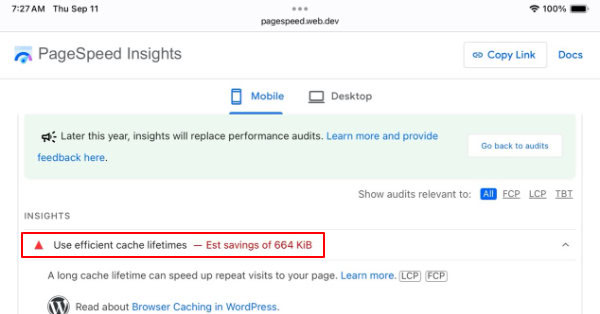
When I tested my site, caching wasn’t working the way it should. Files were only being saved for six hours before browsers had to fetch them again. That’s far too short for files that rarely change.
I tried several fixes: first, adjusting Bluehost’s built-in settings; then tweaking things in Cloudflare, which is designed to speed up sites by storing copies of your pages on servers closer to visitors. Still no luck — the caching issue remained. I even dug into the site’s configuration files, hoping to force a change manually, but nothing seemed to stick.
Now, I usually avoid adding plugins unless I really need to — too many can create bloat and actually slow your site down. That’s why I tried all the built-in options first. But in this case, nothing else worked. So I installed W3 Total Cache. And finally, that did the trick. The plugin overrode the default settings and set up long-term caching the way it should have been from the start. PageSpeed immediately recognized the improvement, and I saw my score jump.
Taming the Image Problem
The next hurdle was image optimization. In simple terms, image optimization takes the pictures you upload and creates versions that are sized and compressed to fit the device your visitor is using. That way, someone on a phone isn’t forced to load the same huge file meant for a widescreen desktop. Why does that matter? Because large, unoptimized images can slow down your website — and, as mentioned earlier, Google takes that into account when ranking sites.
Since Bluehost includes an automatic WebP conversion tool, I assumed it would handle image optimization for me. WebP is a newer image format designed to make files smaller without sacrificing quality. But instead of helping, it actually made things worse. Some of my images ballooned in size — my homepage hero image, for example, grew from about 200 KB as a JPEG to over 1 MB as a WebP.
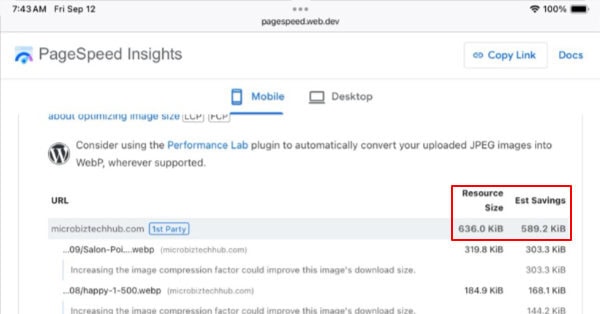
Why did that happen? In many cases, my original JPEGs were already well-compressed, so there wasn’t much extra space to save. Bluehost’s tool also didn’t let me control quality settings, which meant it often produced “high-quality” WebPs that were actually larger than the originals. In other words, the tool was trying to preserve detail I didn’t need — and the trade-off was slower load times.
That’s when I decided to try a dedicated image optimization plugin. After some research, I landed on ShortPixel Image Optimizer. Unlike the one-size-fits-all approach from Bluehost, ShortPixel gave me control over how images were compressed and converted. It not only optimized the images I had already uploaded but also handled new ones automatically as I added them. The results were exactly what I needed: smaller file sizes, faster load times, and no visible drop in quality. For the first time, I felt confident my images were actually helping my site perform better instead of holding it back.
The Payoff: A Faster, Leaner Site
With caching fixed by W3 Total Cache and images optimized through ShortPixel, everything finally came together. When I ran PageSpeed Insights again, my score jumped from the mid-60s to 98–99 on mobile.
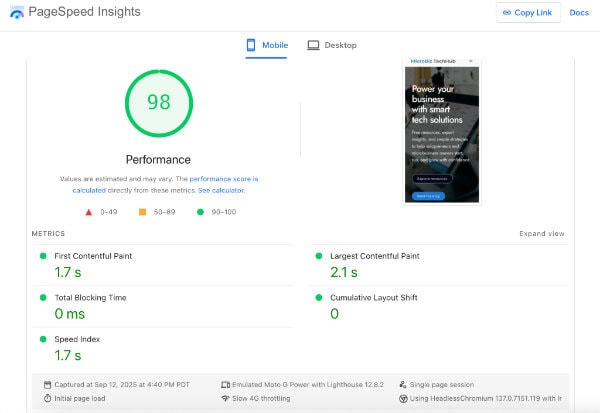
That kind of improvement isn’t just a vanity metric. It means visitors can actually use the website without delays, whether they’re on a phone between appointments or at a laptop in a coffee shop. It also means search engines see a site that loads efficiently, which can only help when it comes to visibility.
For me, the win was bigger than a number. It was the confidence of knowing that MicroBiz TechHub was delivering a smoother experience for solopreneurs who take time out of their day to visit. That’s what will keep them coming back — and what will keep the website growing.
Lessons Learned (and What You Can Take Away)
Looking back, the biggest thing I learned is that solving performance issues isn’t always about chasing the fanciest tools — it’s about finding what works in your specific setup. I spent time trying to make Bluehost and Cloudflare’s built-in features handle caching and optimization because in theory, they should have worked. But when they didn’t, I had to keep experimenting until I found a solution.
Here are the key takeaways for solopreneurs working on their own sites:
- Start with what you already have. Your host may include features like caching, CDN integration, or image optimization. Try those first before layering on more plugins.
- Don’t be afraid to add a plugin if you really need it. Too many plugins can slow down your site, but sometimes one good plugin is the difference-maker. For me, W3 Total Cache solved caching in a way nothing else could.
- Choose smarter image tools. Not all “optimizations” actually optimize. Bluehost’s WebP conversion made my files bigger, but ShortPixel handled both old and new images with better results.
- Remember, this was all done with free tools. There’s no financial barrier to improving performance. ShortPixel does have a free limit of 100 images per month, but that’s enough for many solopreneurs just getting started.
Most importantly, don’t think of site speed as a tech chore. Think of it as part of customer service. A fast, reliable site shows respect for your visitors’ time and gives them one less reason to click away. That’s true whether you’re running a local café, a trade service, or an online shop. Technology isn’t there to complicate your business — it’s there to make it run smoother, so you can serve your customers better.
Final Thoughts
If a slow website has been holding you back, know that you don’t always need expensive tools or a developer to fix it. With free plugins, a little persistence, and some trial and error, you can get real results. I went from a PageSpeed score in the 60s to 98–99, and the difference is night and day.
Have you battled with site speed issues before? What worked (or didn’t) for you? Share your experience in the comments — your story might help another solopreneur figure out their next step.
Featured image by Sticker it on Unsplash.